
Cerivo helps you manage policies in a structured way.
You can:
- send policies directly to relevant users
- follow up if policies are not acknowledged
- redistribute updated policies when needed
- track who has read and confirmed each policy
This gives you clear documentation and helps ensure policies are understood and followed.
Create a new policy
To create a policy for distribution:
- Navigate to Policies from the left side menu
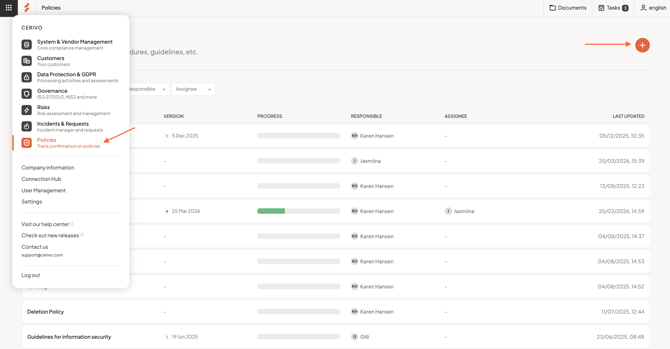
- Select the + (plus) icon in the top right
- Choose a template from the library and click Add policy or upload or link to a file by clicking Add policy from file to attach a policy (for example a link to a policy stored on your intranet)
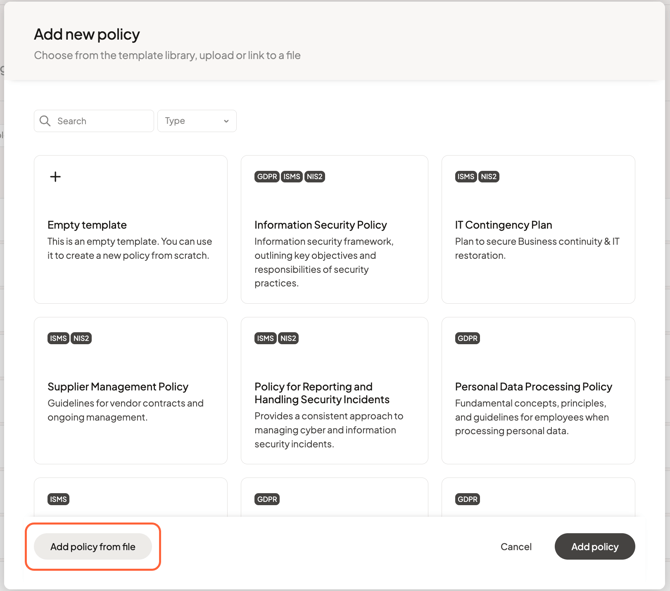
- Enter a name for the policy
- and Organisation name when adding a policy from an existing template. This will be used in the policy document where relevant
- Click Add policy
This is typically the name of the policy you want to distribute.
Select your audience
Choose who should receive the policy.
Not every user needs access to every policy.
Targeting the right audience helps keep communication relevant and manageable.
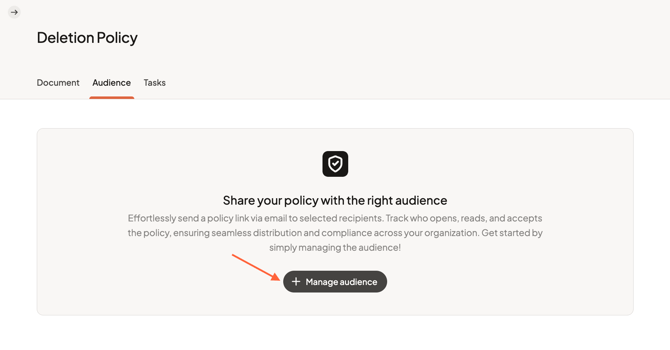
You can:
- Select users manually
Choose users from your existing list- Click Manage audience, then choose the users from the list and click Save. This is also how you can deselect users that you do not want to send the policy to.
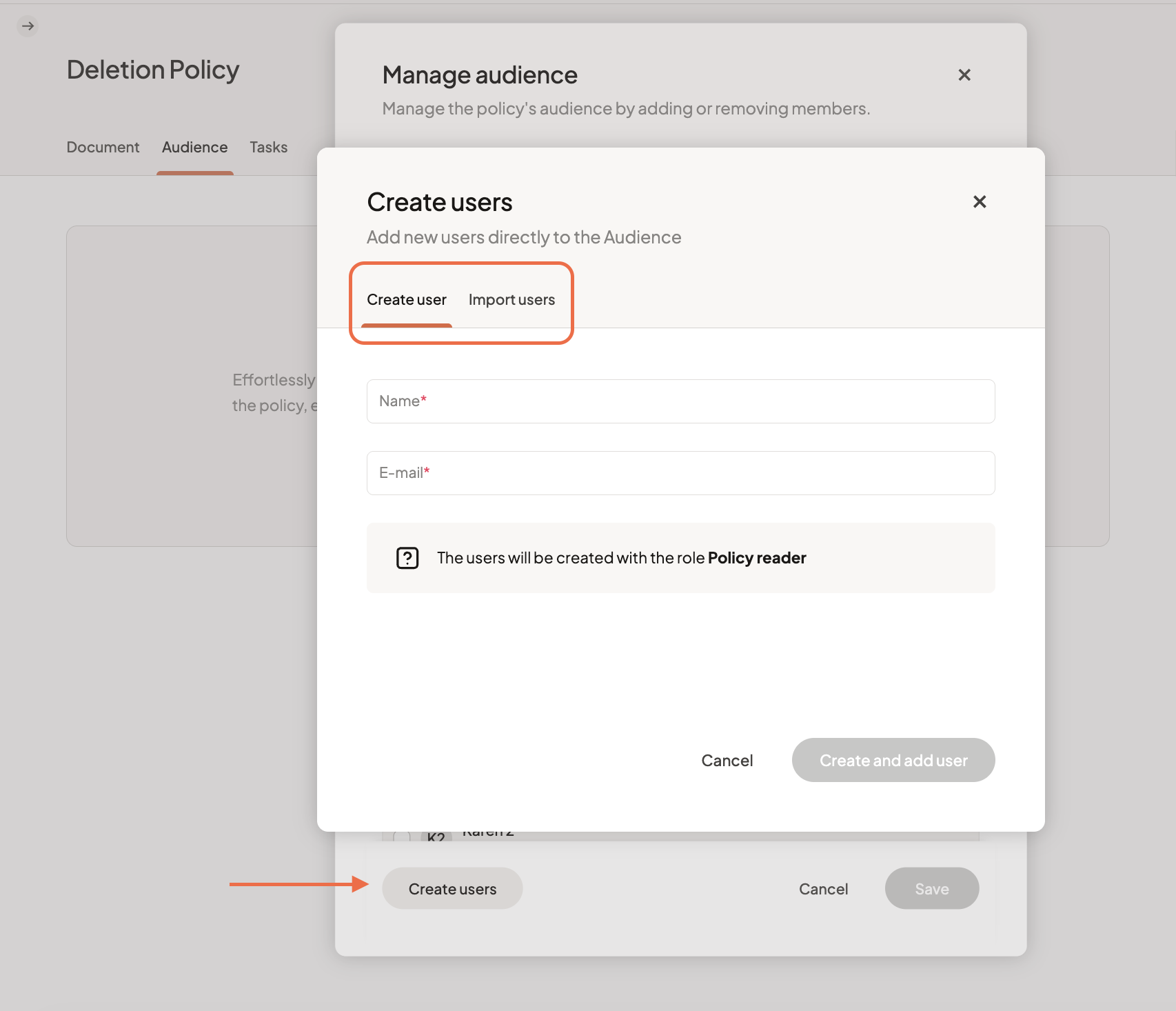
- Add or Import users
If users are not yet in Cerivo, you can add them manually or import them as part of this step. Create or upload a list of users as Policy readers in your Cerivo account.- Click Manage audience, then Create users. Create the user by entering their name and email or choose the tab Import users to upload a list and add users
Send the policy
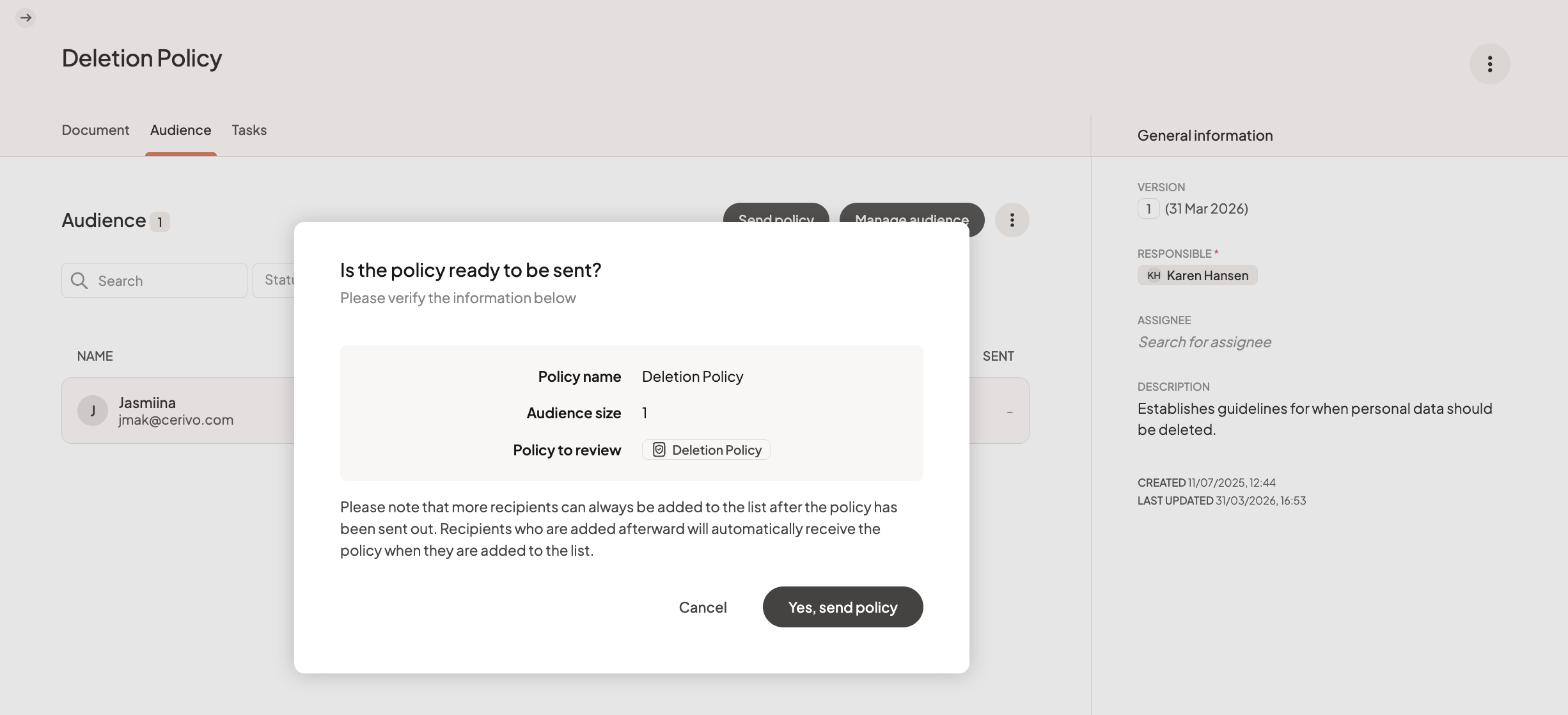
Before sending, review:
- the policy details
- the selected audience
Then, click Send policy. You will be asked to confirm that the policy is ready to be sent. Once sent, the policy will be delivered to the selected users.
You can then track who has read and confirmed it, and follow up where needed.
Tip: The policy must be published before you can send it out.
Any questions? Contact us at support@cerivo.com!