
Sometimes you need to create the same task multiple times.
For example, you might want:
- a recurring audit task for each vendor
- deletion tasks across multiple systems
In Cerivo, you can do this by copying an existing task and using it as a template.
Create your template task
Start by creating a task as you normally would.
This task will act as your template, so include everything you want to reuse:
- description
- procedures
- attachments
To make it easy to find later, consider adding “Template” to the task name.
Copy the task
Once your template is ready:
- Open the task
- Select the three dots in the top right
- Choose Copy task
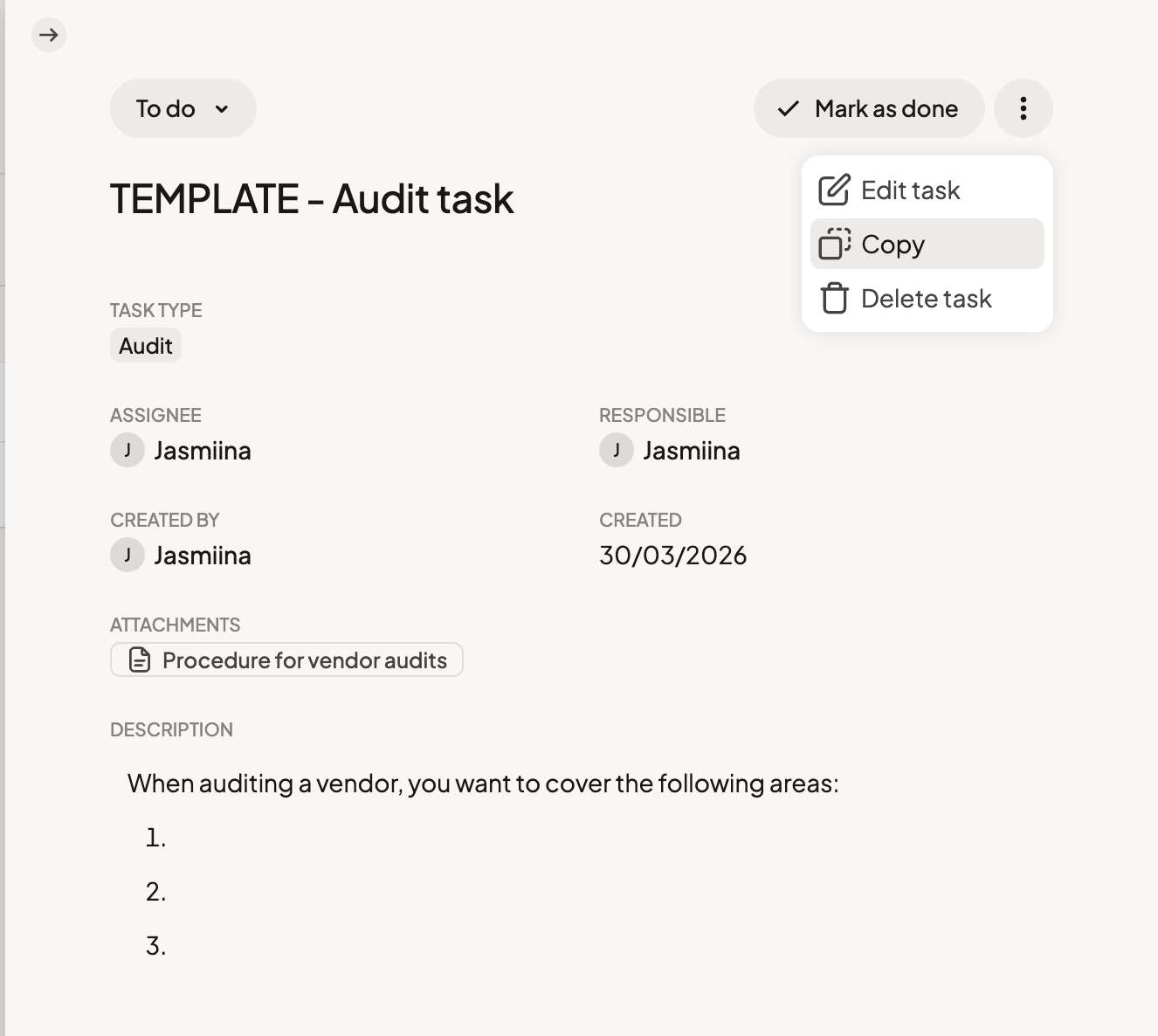
Copying a task will open the task editor of a new task that contains all the same information and attachments.
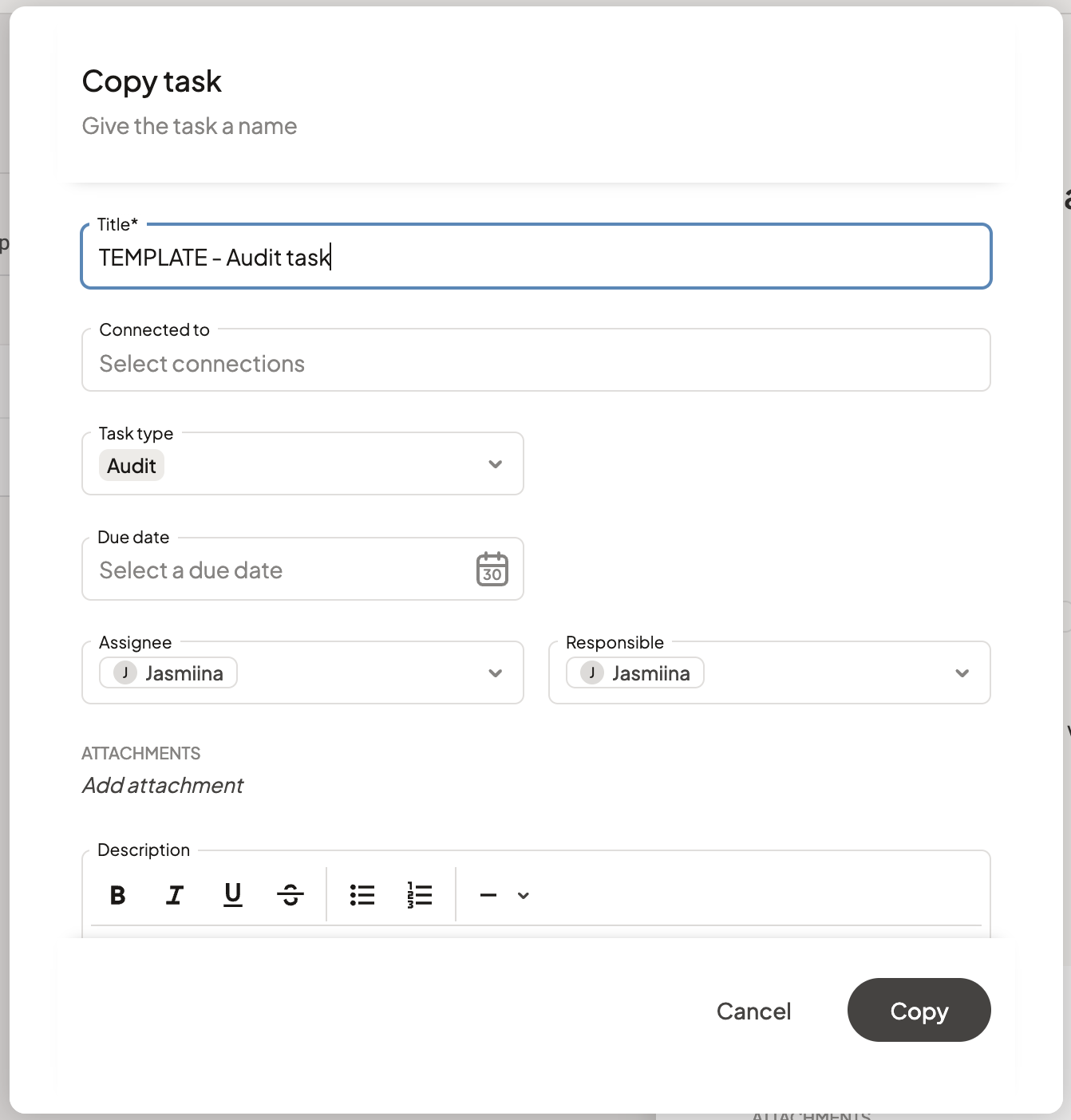
Update the new task
After copying, adjust the details for the specific task:
- Assignee
- Responsible person
- Due date
- Associations (such as systems or vendors)
The description and attachments usually stay the same, since they are part of the template.
Keep tasks structured
When using templates across systems, vendors, or other areas, make sure each task is linked to the correct item.
This keeps your work organized and ensures each task is tracked in the right context.
Any questions? Contact us at support@cerivo.com!