
This article explains how to set up your Processing activities within Data Protection & GDPR in Cerivo.
Read more about:
What is a Processing Activity?
How to approach mapping your Processing Activities
What your record needs to include
How to map Processing Activities in Cerivo (steps 1-7)
What is a Processing Activity?
Article 30 requires you to document how your organization processes personal data.
In practice, this means creating a clear list of Processing Activities that describe:
- what data you process
- why you process it
- how it is handled
This record helps you stay compliant and gives you a clear overview of your data practices.
How to approach mapping your Processing Activities
If you’re unsure where to start, begin with how your organization actually works.
Think in terms of real processes, such as:
- employee management
- customer onboarding
- marketing activities
Each of these can be documented as a Processing Activity.
You can also review example Processing Activities to help structure your record.
What your record needs to include
Each Processing Activity should cover:
- Name and contact details of the data controller
- The purpose of the processing
- Categories of data subjects and personal data
- Any data transfers to third countries or international organizations
- Data retention and deletion practices
- Technical and organizational security measures
How to map Processing Activities in Cerivo
1. Go to Data Protection & GDPR
Open the menu and select Data Protection & GDPR - Processing activities and assessments.

2. Review your overview
Here you’ll see all Processing Activities linked to your organization, including:
- departments
- responsible person
- status
- approval
You can return here anytime to update or approve activities.
To create a new one, click Create Processing activity.
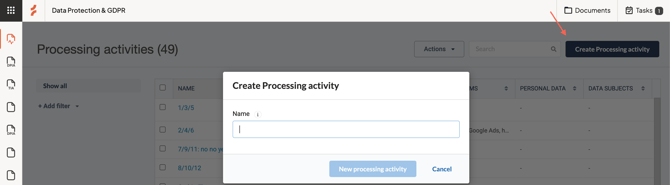
3. Add a new Processing Activity
Enter a name and select New processing activity to create it.
4. Complete the questionnaire
Fill in the guided questionnaire.
Cerivo will show relevant follow-up questions based on your answers, so you can build a complete record step by step.
5. Assign responsibility
Set a Responsible person for the activity.
You can also use the Task Manager to:
- assign tasks
- set deadlines
- send reminders
If you need to add users, you can do this in Settings.
6. Add the details
Complete the activity by adding:
- purpose
- systems (from your existing system list)
- types of personal data
- other relevant information
The questionnaire will guide you through what’s required.
7. Approve and generate your report
Each Processing Activity needs to be approved.
Once approved, you can generate your Article 30 report from the Reports section.
Any questions? Contact us at support@cerivo.com!