
You can upgrade your Cerivo platform with multiple accounts. Contact your CSM to talk more about creating more accounts in your Cerivo platform.
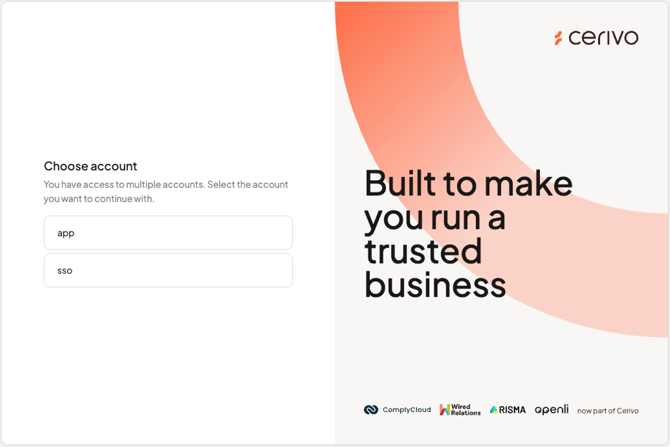
When you have multiple accounts in Cerivo, you can switch between the different accounts in app as explained below. Furthermore, you choose the account you want to continue with on the first login (and after clearing cache or changing cookie settings). You will be asked to choose your account after inserting your email and password. Choose the one you want to continue using.
Once you are in Cerivo, you can switch between your accounts simply by clicking your current account name on the top right corner of the menu bar, next to Documents and Tasks. A dropdown opens with option to Switch accounts. In case you do not have multiple accounts, you will not see the account name.
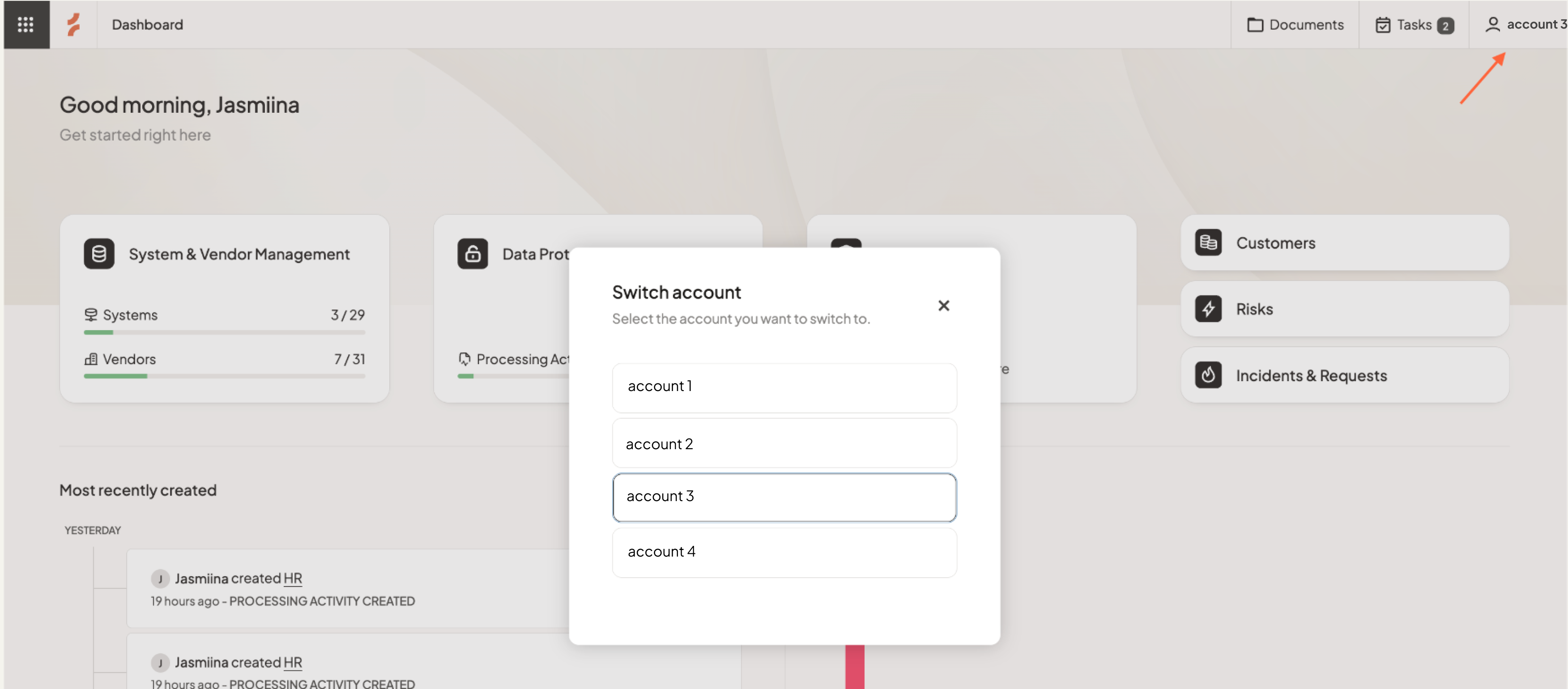
By clicking Switch accounts, the account selection module opens and you can choose which account you want to switch to. You will not ned to login again, and will always be redirected to the Dashboard page after switching an account. The switched account name will be displayed on the top menu and you will get a pop up message stating that the account has been switched.
Any questions? Contact us at support@cerivo.com!