
Follow these steps to get started with your Cerivo platform setup. Click the 9 point menu item in the top left corner to begin.
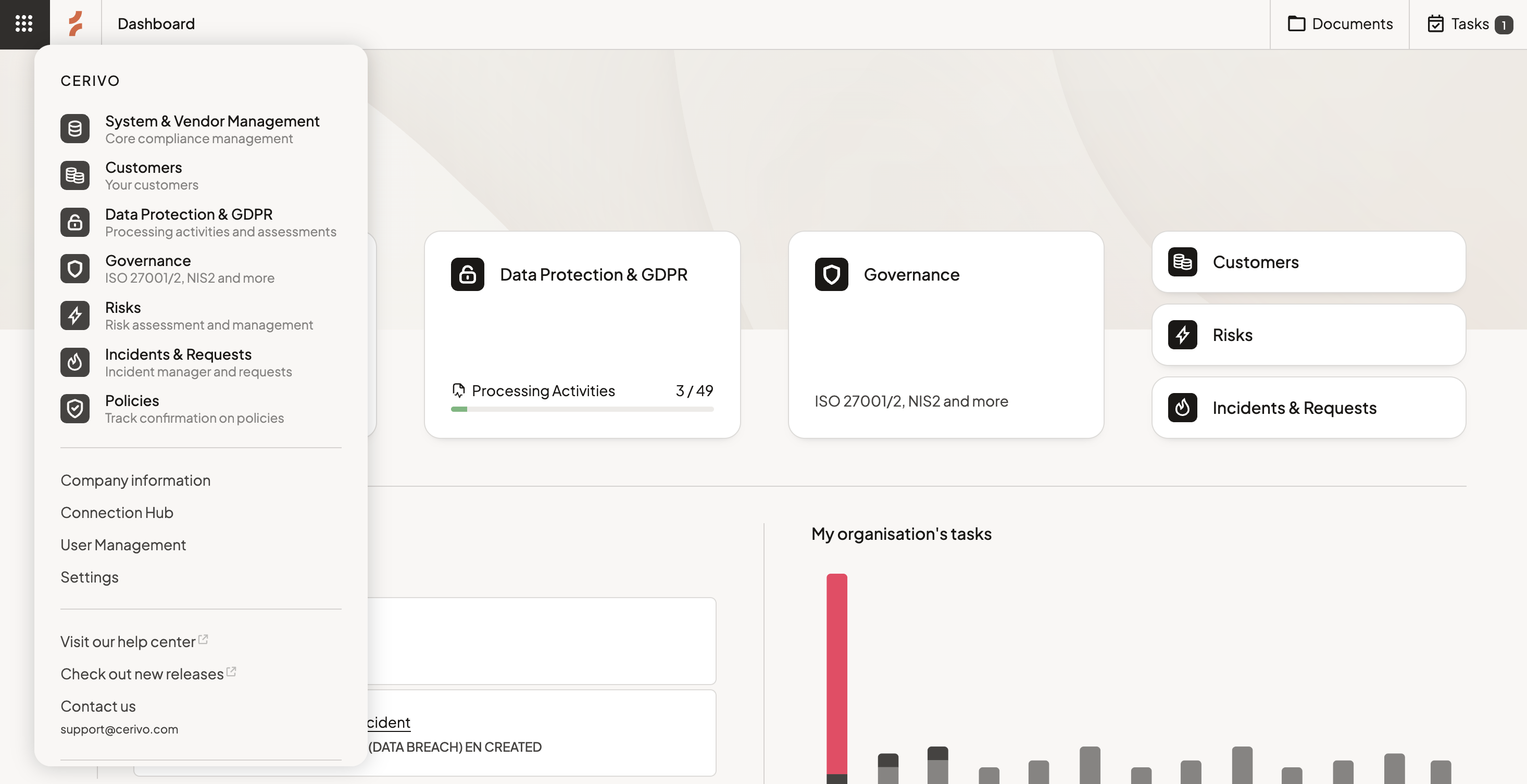
Step 1 - Fill in your company information
Where: Menu (top left) → Company Information
Start by adding your company details, including contact information, your DPO, and your company representative.
This information is used in your reports, so it’s worth getting it right from the beginning.
Step 2 - Create your users
Where: Menu (top left) → User Management
Cerivo is built for collaboration across data protection and information security.
Add your users early so you can start assigning responsibilities and tasks.
If you’re not ready to give someone access yet, assign them the “No access” role. They won’t be able to log in or receive notifications.
Step 3 - Import systems and vendors (Connection Hub)
Where: Menu (top left) → Connection Hub
Most of Cerivo builds on your systems and vendor data. Start by importing what you already have.
You can upload files in these formats:
- .xlsx
- .csv
- .json
During import, you can match each column to the right field, so your file doesn’t need to follow a strict structure.
Just make sure the first row contains your column headers.
Note: If you have the customer module, you can also import your customer list.
Step 4 - Customize your settings
Where: Menu (top left) → Settings
Use Settings to adjust dropdown options and tailor Cerivo to how your organization works.
You can add, rename, or remove options, so the platform reflects your processes—not the other way around.