
Once your systems are mapped, the next step is to map your vendors.
Vendors are typically providers of systems or services. Many will process data on your behalf, making them a key part of your compliance and risk setup.
Mapping vendors helps you:
- understand your supply chain
- track data processors
- manage agreements and audits
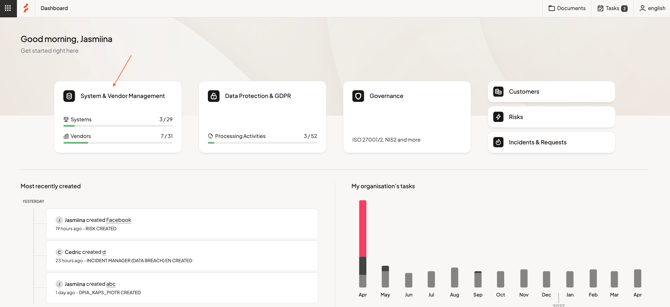
Step 1 — Go to Vendors
Navigate to System & Vendor Management and select Vendors.
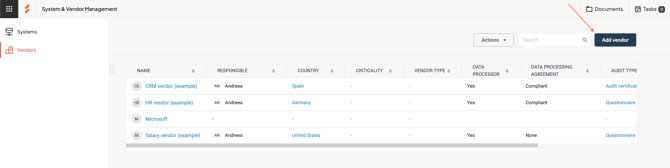
Here, you’ll see all vendors currently mapped and their key details.
Step 2 — Add a new vendor
Select Add vendor in the top right.
- Enter the vendor name
- Save the vendor
You can use Save & create new to add multiple vendors in sequence.
Tip: Use the full legal name (e.g. including Inc. or LLC) to avoid confusion.
Step 3 — Open and complete the vendor
Open a vendor to access the detail page.
Here, you can add and manage information about the vendor.
Key information to include
Focus on the most important details first:
Base information
-
Status — track progress (Not started, In progress, Done)
-
Responsible — who manages the vendor internally
-
Vendor type — e.g. data processor, consultant, software provider
-
Criticality — how important the vendor is to your operations
Data processing
If the vendor processes data on your behalf, document:
- whether they are a data processor
- whether a data processing agreement (DPA) exists
- whether the DPA is up to date and compliant
This helps you maintain control over your data processing relationships.
Add context and connections
To build a complete overview, you can add:
- Description — what the vendor provides
- Labels — categorize vendors in a way that fits your setup
- Connected systems — link vendors to the systems they support
- Contacts — key people at the vendor
- Locations and sub-processors — including third-country transfers
This ensures your vendor setup reflects how your organization actually works.
Support audits and risk management
From the vendor page, you can:
- view and create risk assessments
- send questionnaires to vendors
- manage tasks such as audits and reviews
This helps you maintain a consistent and documented audit process.
Attach documentation
You can store relevant documents directly on the vendor, such as:
- data processing agreements
- contracts
- audit documentation
Attachments can also link to external sources.
Next step
Once your vendors are mapped, you can move on to mapping your Processing Activities.
Any questions? Contact us at support@cerivo.com!