
Why use recurring tasks
Recurring tasks help you turn one-off actions into structured, ongoing work.
They ensure that key activities—such as audits, reviews, and updates—are completed regularly without needing to be recreated each time.
This helps you:
- stay consistent
- reduce manual work
- keep responsibilities clear over time
Recurring tasks are especially useful when you want to build reliable routines across your organization.
How recurring tasks work
When you create a recurring task, you define:
- a deadline for the first task
- a frequency (e.g. weekly, yearly)
Note: A deadline is required to create a recurring task.
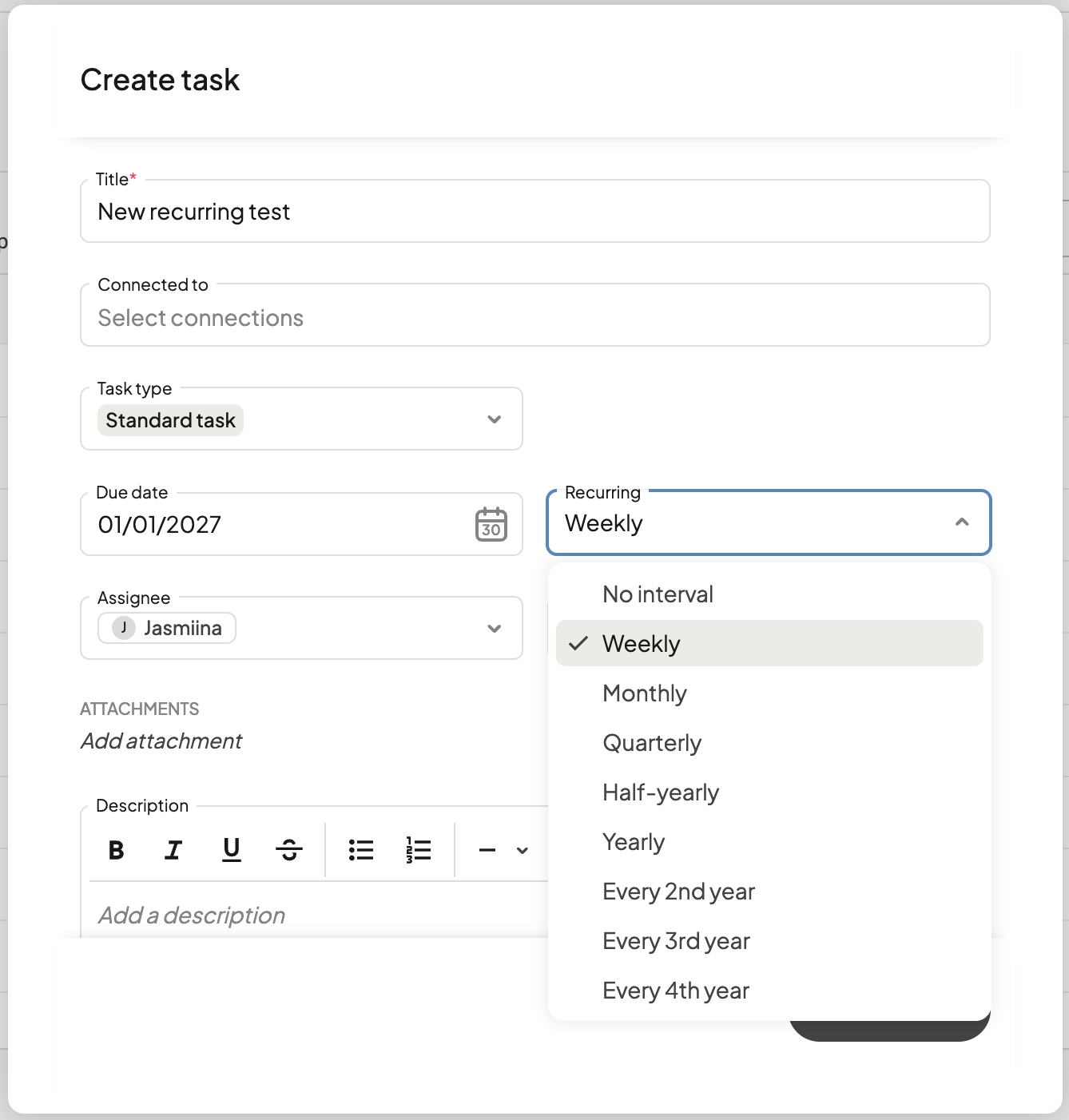
By setting the recurrence you'll define the frequency with which this task will repeat, from weekly tasks to tasks repeating every 4 years.
What happens after the first task
The initial task becomes the main task.
When its deadline is reached:
- a new task is created automatically
- the deadline is moved forward based on the selected frequency
- the new task becomes the main task
Previous tasks remain as part of the history.
If a task is not completed before its deadline, multiple tasks in the same recurrence can remain open.
Task reminders
When you first create a recurring task, the assignee receives a notification.
Tasks created automatically through recurrence do not trigger a “new task” notification.
Read more about task reminders.
Managing recurring tasks
Change the frequency
Edit the main task and update the recurrence.
Future tasks will follow the new frequency.
Stop a recurring task
To stop a task from repeating, either:
-
delete the main task, or
-
set the recurrence to No interval
Update task details
To change details such as:
- description
- attachments
- assignee or responsible
- task type
Edit the main task.
Changes will apply to future tasks, but not to past ones.
When is the next task created?
The next task is created when the current task reaches its deadline.
For example, if a task is due on December 23, the next task will appear on December 24.
Viewing recurring tasks
Note: This option appears once at least two tasks exist in the recurrence.
See previous tasks
Open a task, select the three dots, and choose Previous tasks.

Here you can view:
- past completions
- comments and documentation
- task evaluations
Find the main task
You can identify the main task by:
- opening Previous tasks (the most recent task is at the top), or
- using the Recurring tasks filter in the task overview
Any questions? Contact us at support@cerivo.com!