
In Cerivo Advance, we have three user roles: Superuser, Manager and Learner. The user roles are assigned on a user level, and a user can have multiple roles assigned to them.
- Superuser: full administrative access of your organisation's Cerivo Advance environment, including user management, course enrolment, and reporting across the entire organisation.
- Manager:can view the progress of learners assigned to them as direct reports.
- Learner: can access courses, track their own progress, and view completed courses and certifications.
In this article, we will deepdive into the Learner role, the role assigned to most users in Cerivo Advance.
The Learner Experience is where users access and complete the awareness and skills training they have been enrolled in. Learners can track their progress, view completed courses, and access or download their certificates. They can also manage their own profile information and update their password as needed.
If you are a Cerivo user, you can access Cerivo Advance directly from your Cerivo platform.
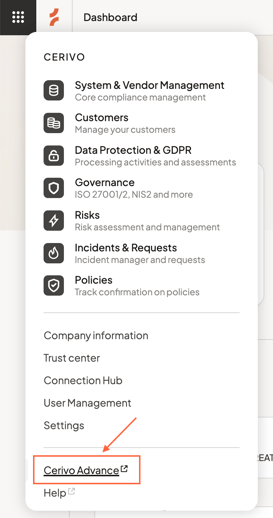
Dashboard
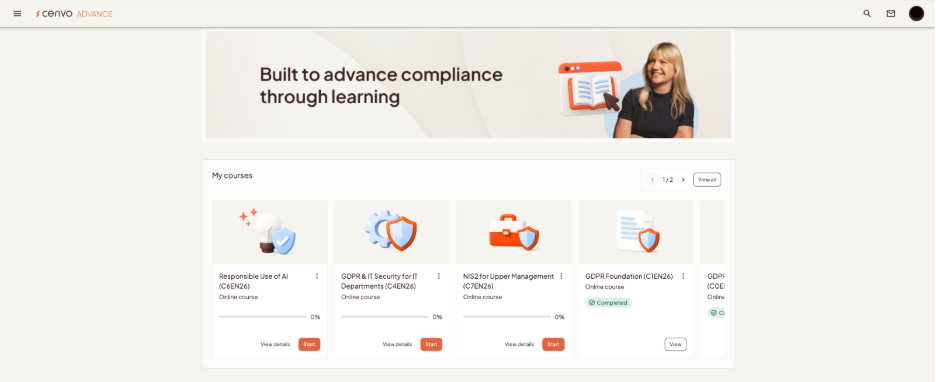
Once you login, you will land on the Dashboard page, where you can see an overview of all your assigned training under My courses. Read more about all courses in Cerivo Advance.
In this example, the learner is enrolled in two courses: GDPR & IT Security Basics, which has been completed, and Responsible Use of AI, which has not yet been started. If you have multiple courses assigned, click View All to see your full course list.
To return to the Dashboard at any time, click the Cerivo Advance logo or open the menu in the top-left corner and select Dashboard.
Starting a Course
For courses you haven't started yet, click the course card or View Details to see the course description, learning content, and other course information.
When you're ready, click Start to begin.
Resuming a Course
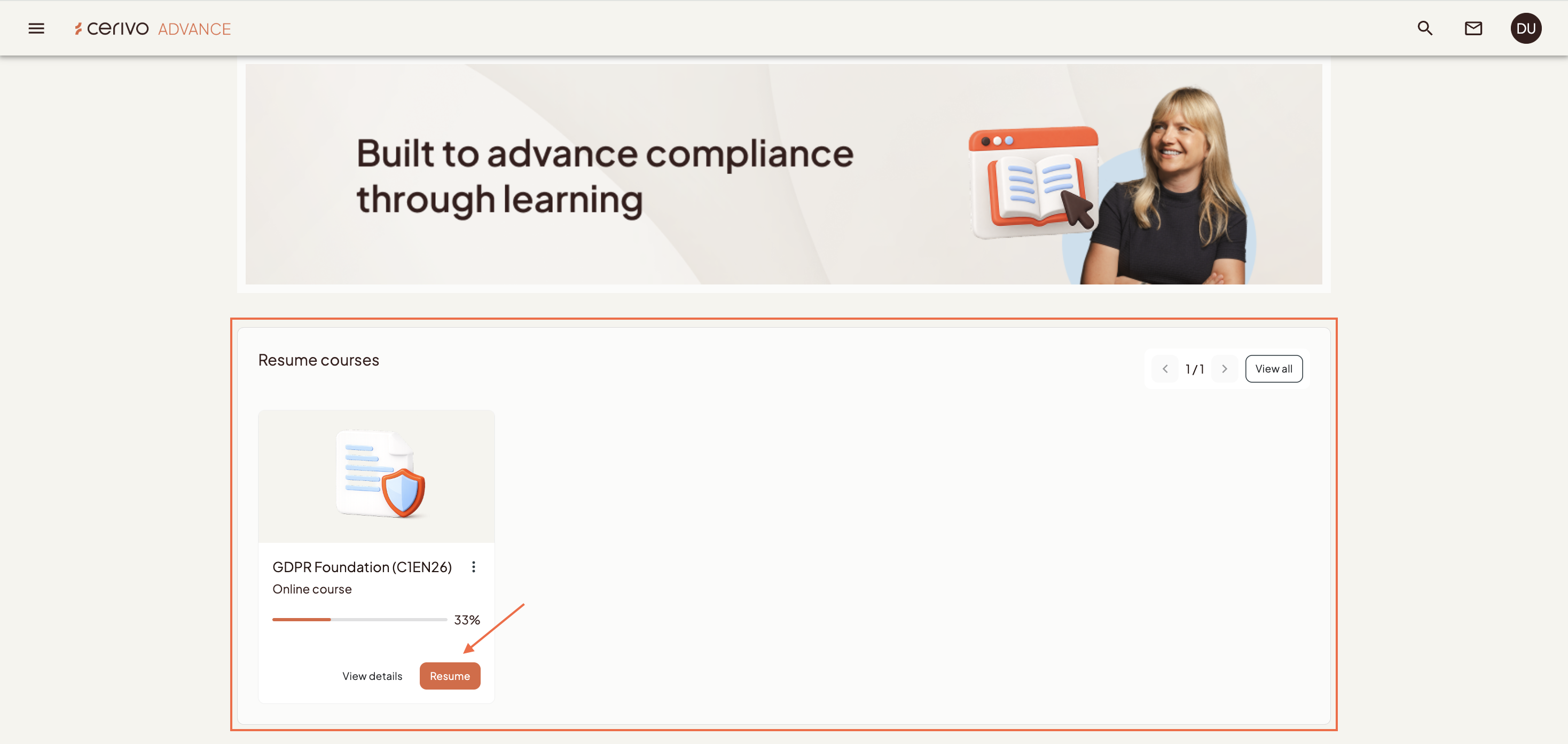
Courses that are already in progress appear under Resume Courses. Click the course card or Resume to continue where you left off. Please note that the percentage bar will only update once you've completed a lesson of a course - typically a course consists of three lessons, so you will see 33% once you've completed the first lesson and 67% once you've completed the second lesson.
Exiting a course
Once you are done with a course, you can click on the orange 'YOU CAN NOW EXIT THE COURSE' button.
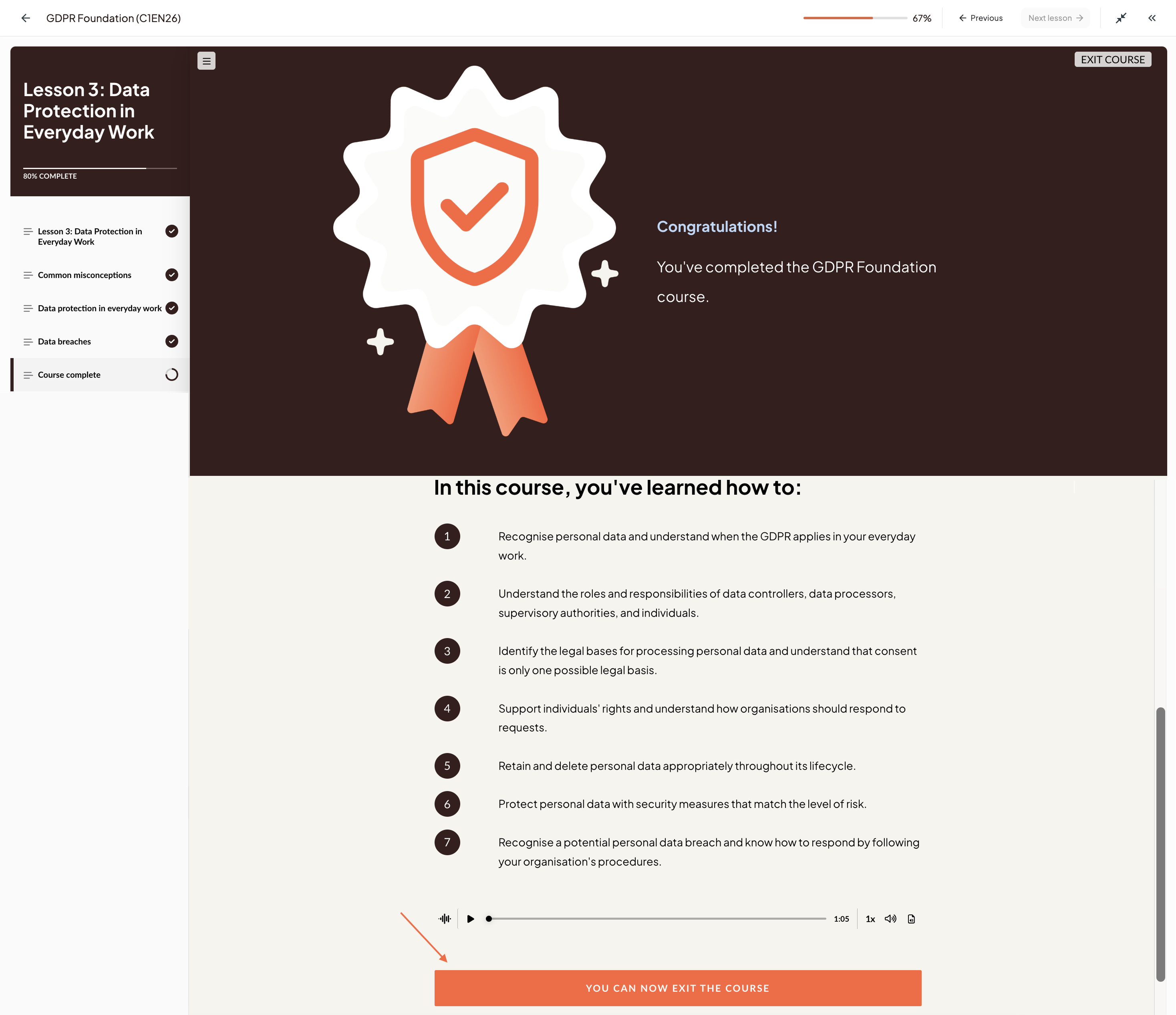
You will see the progress bar changing to 100% and get a success message on course completion.
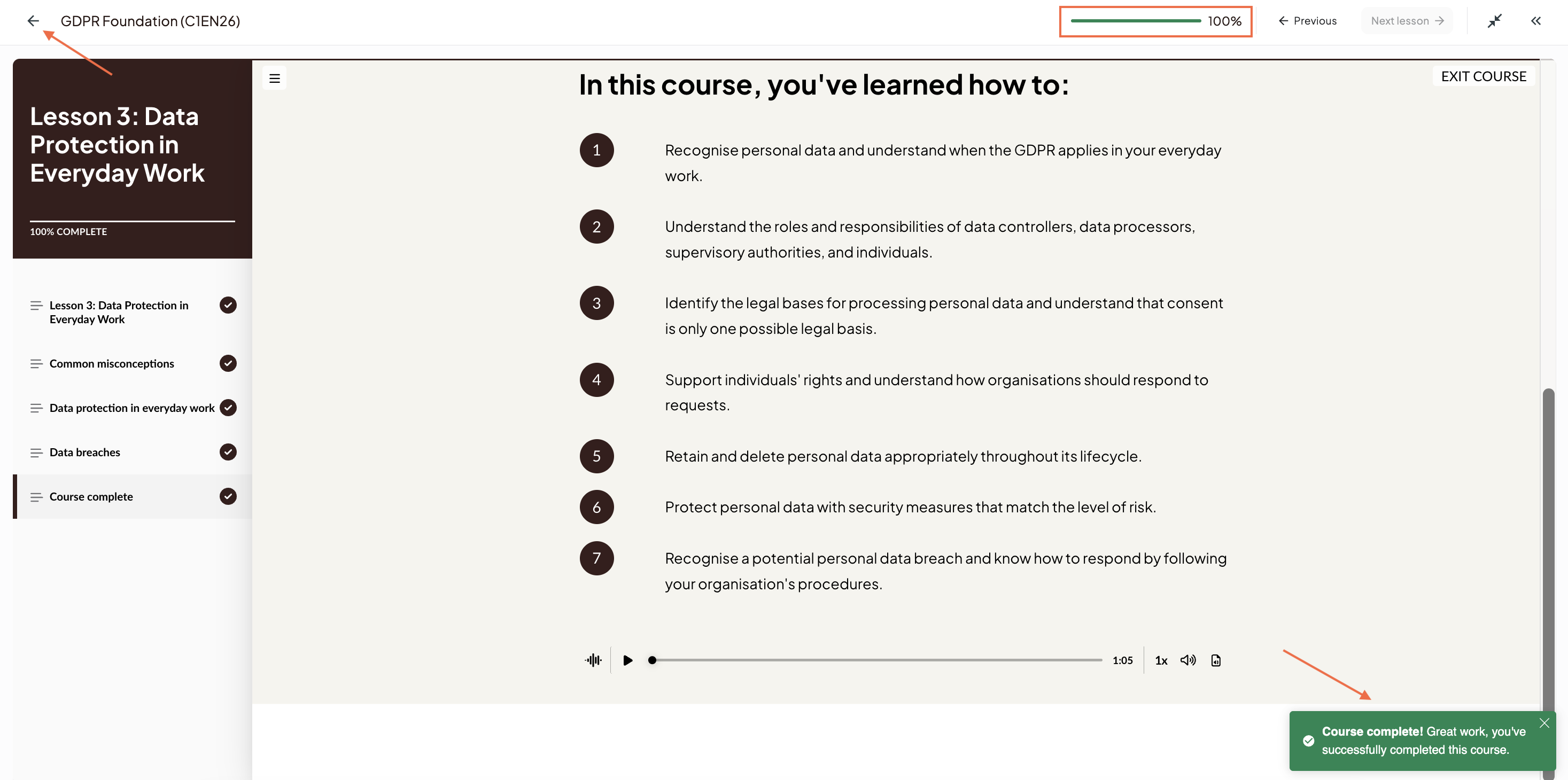
Click the ← arrow on the top left corner to exit the course and return to the Dashboard.
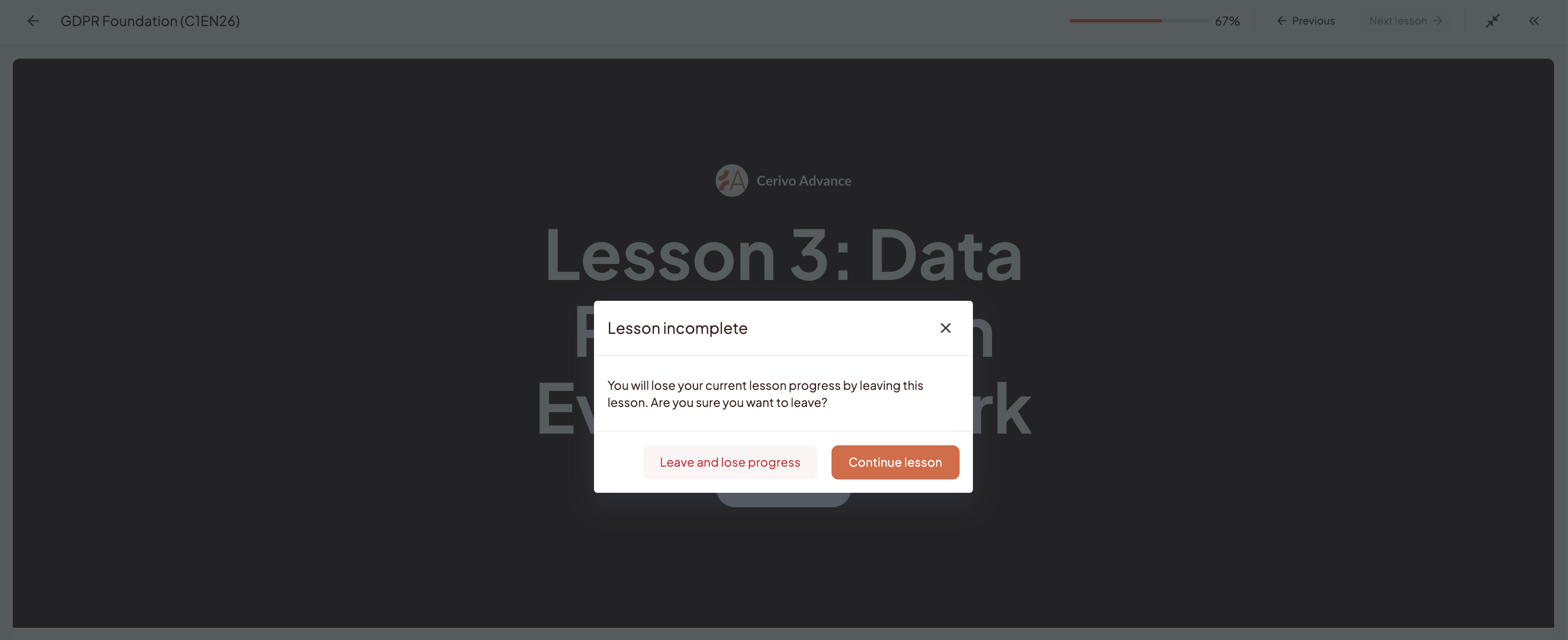
You can also always exit the course to be continued later even if you haven't completed the entire course. Click the ← arrow on the top left corner. You will get a Lesson incomplete message. When you click Leave and lose progress, you will be returned to the Dashboard page. You will keep your lesson progress, so for example if you've completed 2 out of 3 lessons as in the screenshot below, you will see that the progress bar is at 67% and you will continue from lesson 3 when you resume the course.
Viewing Completed Courses and Certificates
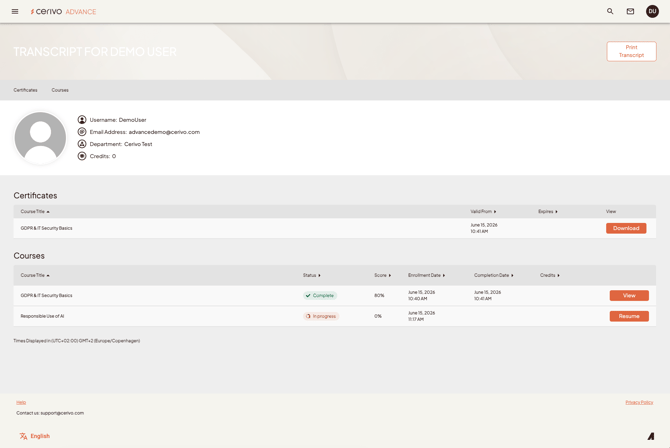
For completed courses, click the course card or View to review course details and outcomes. If a certificate is available, you can view and download it from the Outcomes section.
You can also access your certificates through your Transcript. Open the menu in the top-left corner and select Transcript to view your completed training and download available certificates.You can also print your transcript by clicking Print Transcript on the top right of the page.
User Profile
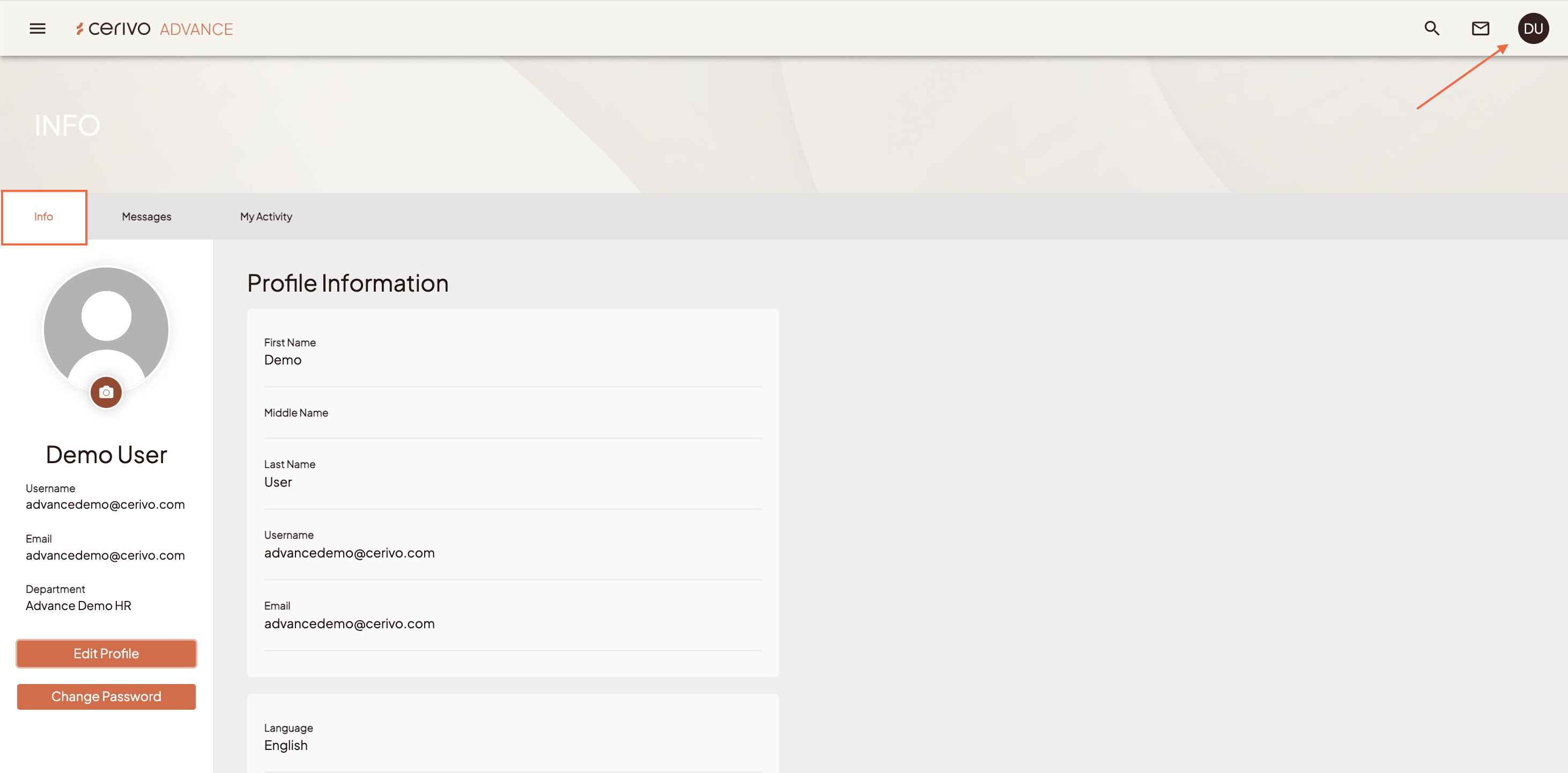
The third page you have as a Learner, is your own user profile page. You can access it from the top right corner where you see your initials. There's three tabs: Info, Messages and My Activity,
Info
Here, you can change the language of your profile by clicking Edit Profile. Other user details will need to be changed by your organisation's Superuser. You can also change your password by clicking Change Password.
Messages
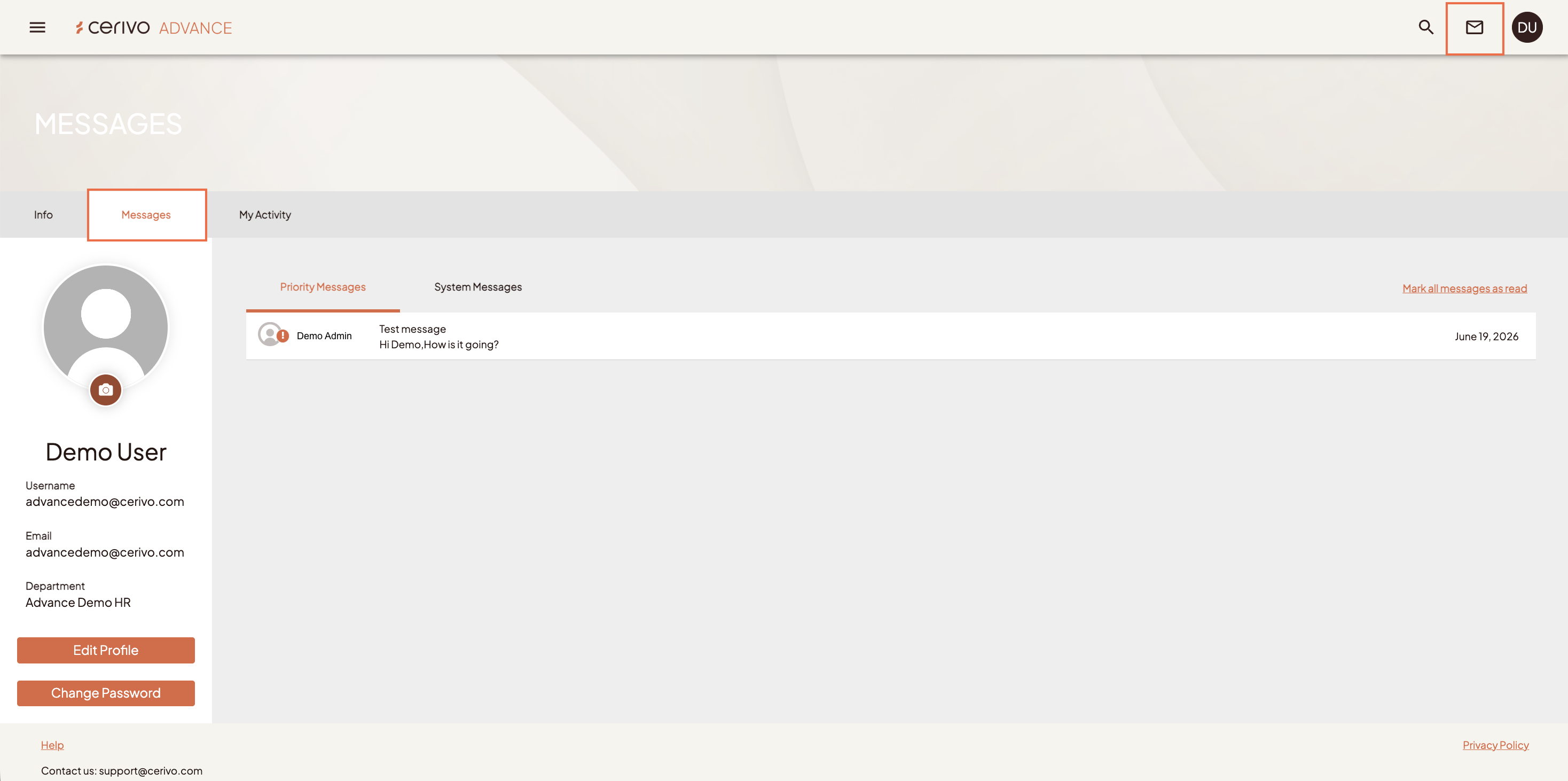
On the Messages tab, you have the Priority Messages sent by your Manager or Superuser or by your CSM in Cerivo. The System Messages are automatic messages sent by the system for example whenever you are enrolled to new courses. You also see your messages if you click the envelope icon on the top right corner.
All messages are also sent to you via email.
My Activity
You also have a tab for all activity in your learning environment, such as if you've been enrolled or unenrolled from courses, completed courses, etc.
Any questions? Contact us at support@cerivo.com!