
Task overview
You can access your tasks at any time from Tasks in the top right.
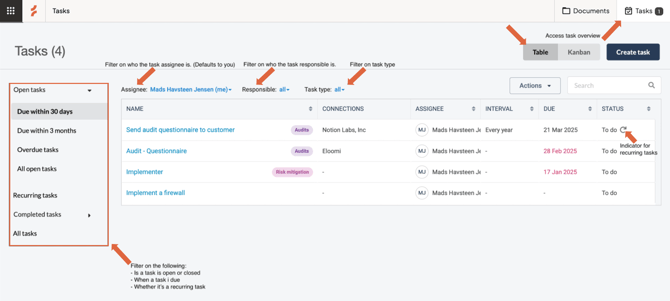
By default, the overview is filtered to show:
- Tasks assigned to you
- All responsible users
- All task types
- Open tasks due within 30 days (including overdue tasks)
This gives you a focused view of what needs your attention.
Views: Kanban and table
You can switch between two views, depending on how you prefer to work.
Kanban view
Gives you a visual overview of task progress.
Table view
Lets you sort and review tasks across multiple fields for more detailed insight.
Both views show the same underlying information.
Filter options
You can refine your task overview using filters. Filters can be combined to create more specific views.
Assignee
Show tasks assigned to a specific user.
Responsible
Show tasks where a specific user is responsible.
Task type
Filter by task type, such as audits, controls, or policy reviews.
Due within 30 days
Show open tasks due soon, including overdue tasks.
Due within 3 months
Show upcoming tasks over a longer timeframe.
Overdue tasks
Focus only on tasks that need immediate attention.
All open tasks
View all active tasks.
Recurring tasks
Show recurring tasks, both open and completed.
Note: Only the most recent version of each recurring task is shown.
For example, if a task has repeated in 2023, 2024, and 2025, only the 2025 version will appear until a 2026 task is created.
Completed tasks
View completed tasks from:
- the last month
- the last 3 months
- all time
Creating a task
When creating a task, you’ll be asked to fill in several fields. Most are standard, but a few are worth highlighting.
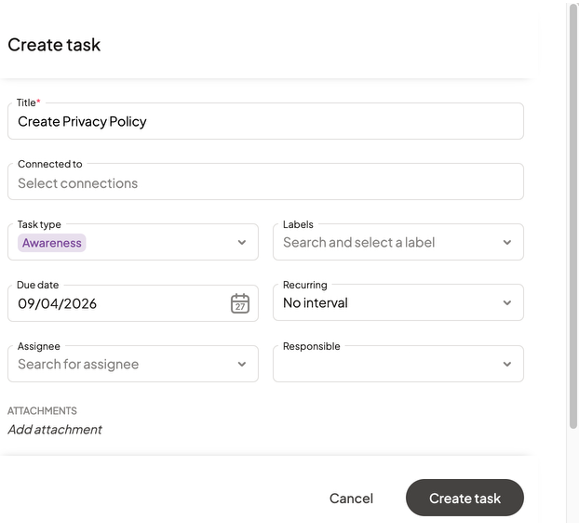
Title
A clear summary of the task.
This is included in reminders, so it should make the task easy to understand at a glance.
Task type
Helps organize your work across different types of activities.
Using task types makes it easier to:
- track overdue work
- report on specific areas (e.g. audits, controls, policy reviews)
Tip: Read more about typical task types.
Connected to
Link the task to relevant elements in Cerivo, such as:
- vendors
- systems
- risk assessments
- DPIAs
- Processing Activities
Connecting tasks ensures they sit in the right context. E.g. if you are creating an audit task, connect it to the vendor being audited (e.g. Salesforce, Inc.).
Note: It is possible to connect a task to multiple elements at the same time.
Due date
Set when the task should be completed.
Recurring
Define how often the task should recur, if at all. Options range from weekly up to every 4 years.
Tip: Read more about recurring tasks.
Assignee
The user expected to complete the task.
They will receive the majority of reminders related to the task.
Tip: Read more about task email reminders.
Responsible
The user responsible for ensuring the task is completed.
This can be the same user as the assignee.
Tip: Read more about task email reminders.
Attachments
Add relevant documents or links, such as:
- procedures
- guides
- forms
Attachments can also be links to material outside of Cerivo.
Description
A more detailed description of the task. This can include step-by-step guidance for completing the task.
Completing a task
When completing a task, you can add comments about:
- completion
- any issues or observations
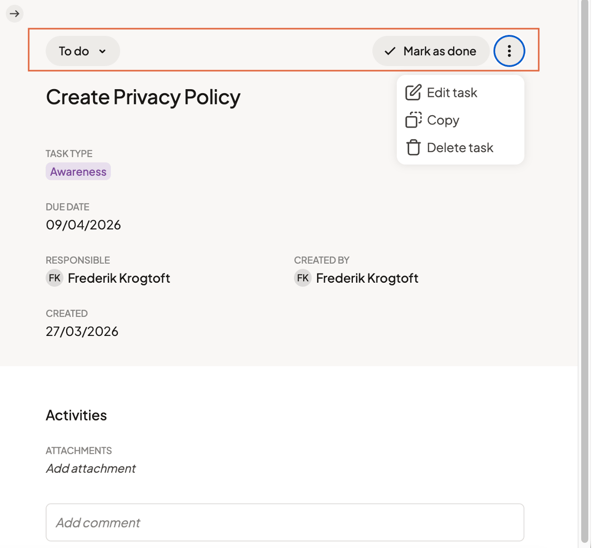
Task details
The upper section contains general task details added during task creation.
Activities
Use this section to document work as it happens.
Here you can:
- Attach documentation such as screenshots or completed forms
- Add comments related to the task
All activity is time-stamped and can be used for:
- Tracking progress on larger tasks
- Questions and answers between users
- Documenting milestones
- Ongoing notes
Task options
From the task view, you can:
- Change the status (To do, In progress, Done)
- Mark the task as done
- Access the task menu
Task menu
Edit task
Update task details (depending on your role).
Find previous tasks
Available for recurring tasks.
See past versions, including completion details and documentation.
Copy task
Create a new task based on an existing one.
Useful for repeatable work.
Tip: As another option of copying tasks you can you can use task templates for common tasks. Read more about task templates.
Delete task
Remove the task (depending on your role).
Task evaluation
When completing a task, you may be asked to evaluate the task:
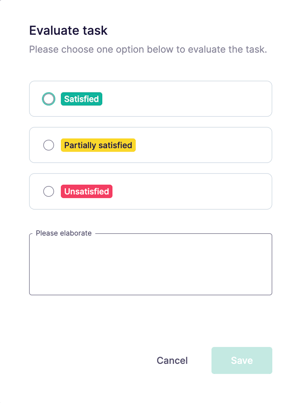
This is an optional feature in Cerivo.
Tip: Read more about task evaluations.
Any questions? Contact us at support@cerivo.com!